

Add a Bot to Your Account, or Split Accounts on One VPS
There are 2 ways to run more bots:
- Option 1: several bots on one account. Add another bot to the same MT5 and account → how
- Option 2: each bot on its own account. Open a new account and run a second MT5 on the same VPS → how
Either way, each bot on each account needs its own license (1 license runs on 1 MT5 account at a time).
Option 1: several bots on one account
- In the same MT5, open another gold chart (right-click gold in Market Watch → Chart Window, then set it to D1).
- Close the charts you don't use, then press Tile Windows on the toolbar so the charts sit side by side.
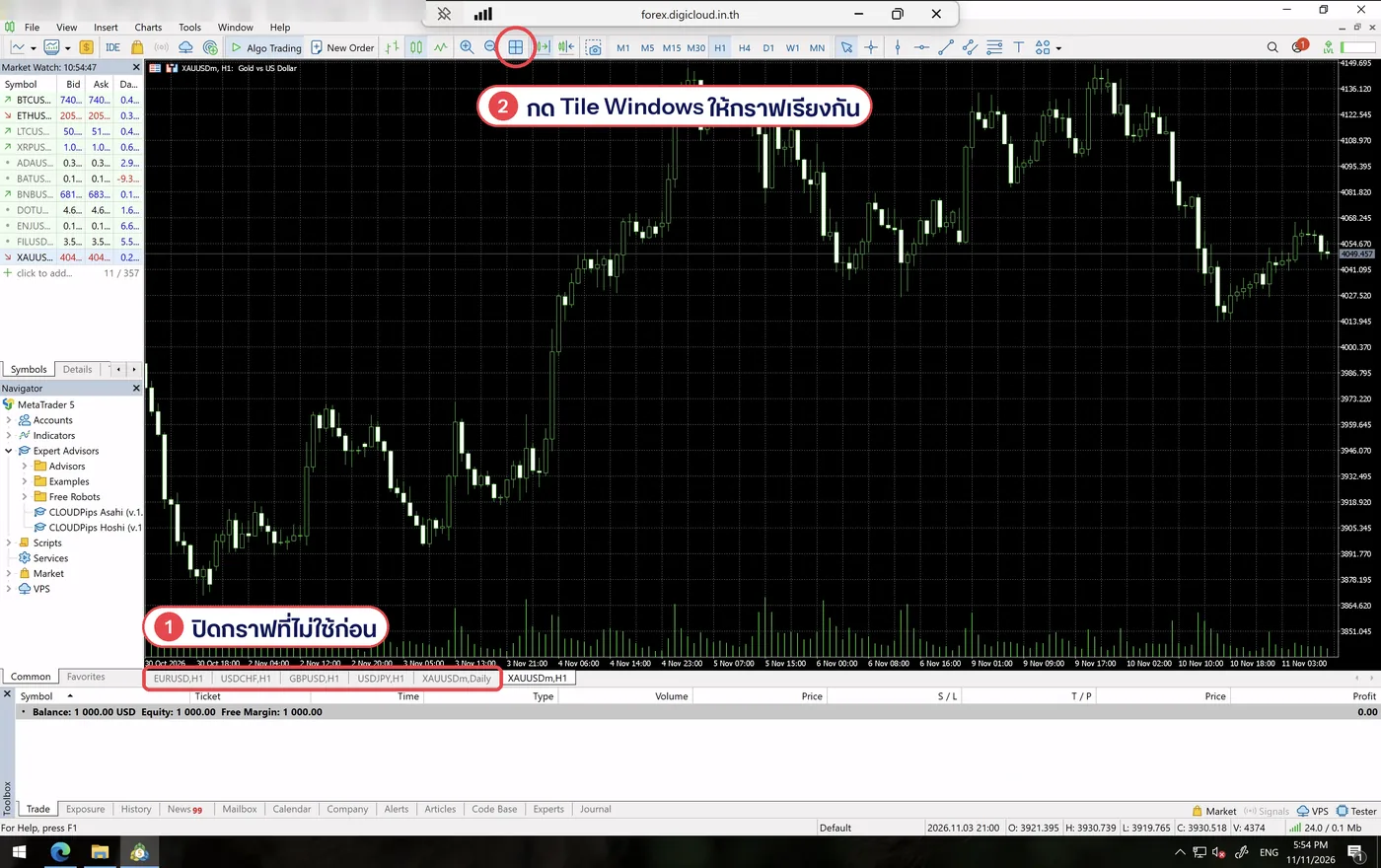
- Drag the new bot onto the new chart, paste that bot's License Key, and set it up exactly as before, following Install a Trading Bot (EA) and Load a preset.
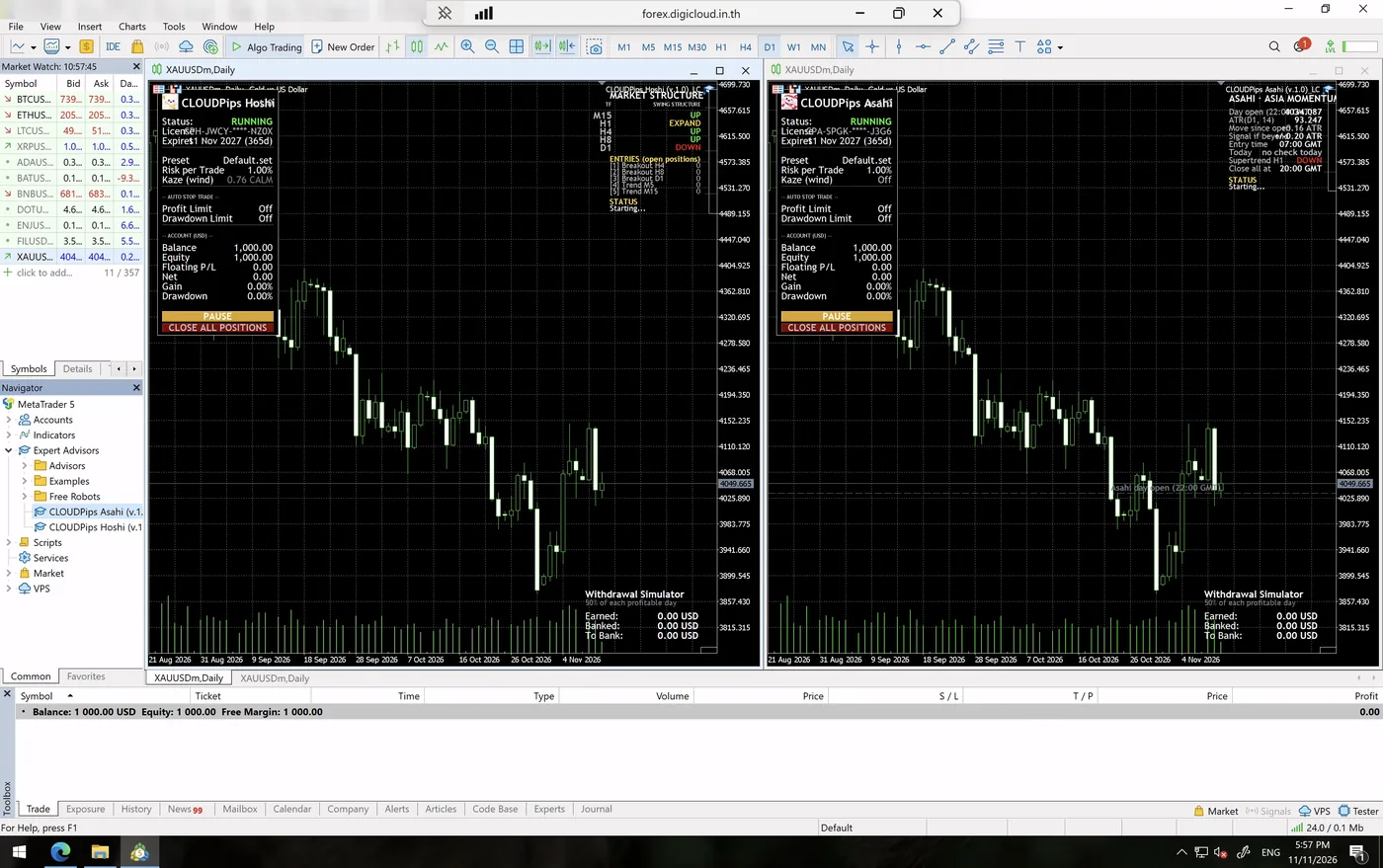
1 chart per bot. Don't attach the same bot twice on charts of the same symbol: it opens duplicate trades and multiplies the risk. When you're done, save it as a profile in case the VPS restarts.
Asahi trades by market session, but you don't set any times: the bot reads your broker's time itself, which you can see in the Experts tab at the bottom. Every bot's other settings are in its setup guide: Hoshi · Kumo · Sora · Asahi · Hayate
3 things before running several bots on one account
- The account must be Hedging. A Netting account holds 1 position per symbol, so the bots' gold trades would merge into one position.
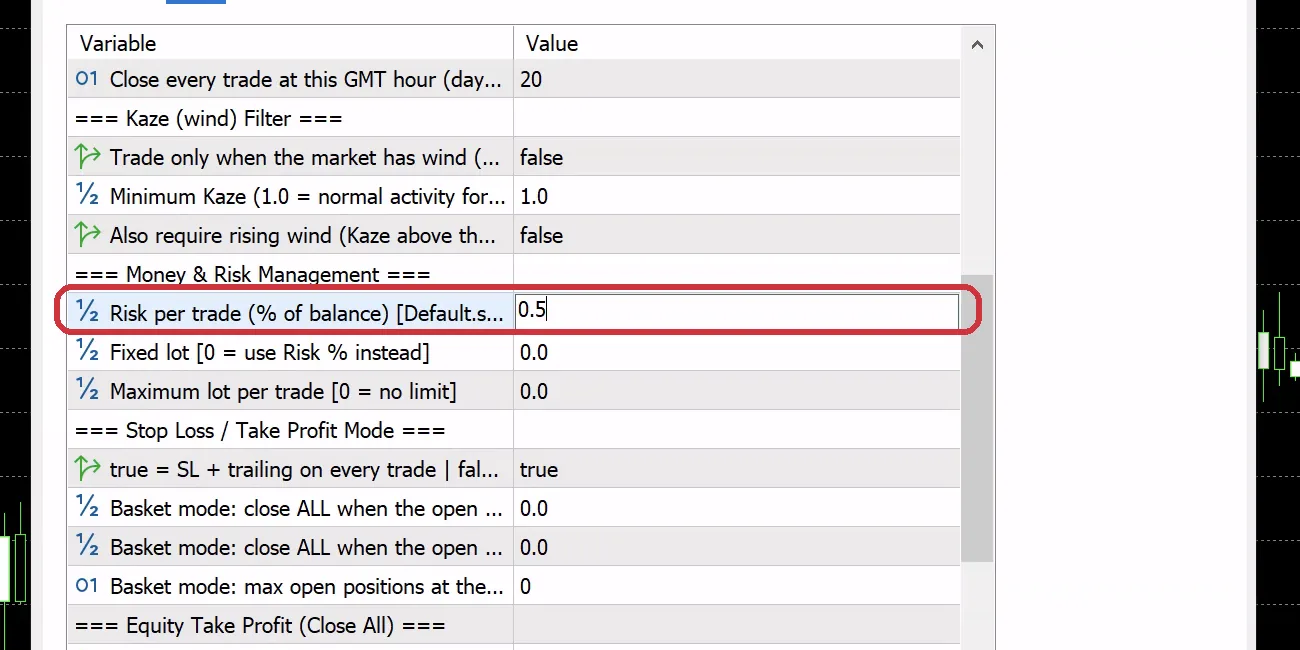
- The risk adds up. 1% per bot is 2% with two bots. To keep the total down, lower
RiskPercent, for example to 0.5% on each (pick the risk you can accept), in the Risk per trade row of the Inputs tab, after loading the preset. At 0.5% you need proportionally more capital, about 2,000 USD or 20,000 USC — see minimum capital. - Already running Hoshi? Don't add Kumo or Sora alongside it. Hoshi already includes both of their entries. To add a bot next to Hoshi, pick Asahi or Hayate.
Each bot keeps its own trades apart by its Magic Number, and CLOSE ALL on one bot's panel closes only that bot's trades. Details: Can I run two CLOUDPips bots on the same account?
Option 2: each bot on its own account
Separate accounts spread the risk: each account's money is its own, so a loss on one doesn't eat into the other, and each bot's results are easy to see. Each account needs its own minimum capital.
One MT5 window logs in to 1 account at a time, so you need a second MT5 on the VPS:
- Close MT5 first.
- Open drive C → Program Files, find the MetaTrader 5 folder (its name may differ with the broker you installed from), copy it and paste it in the same place.
- Rename the new folder so it's different, for example by adding 2 at the end.
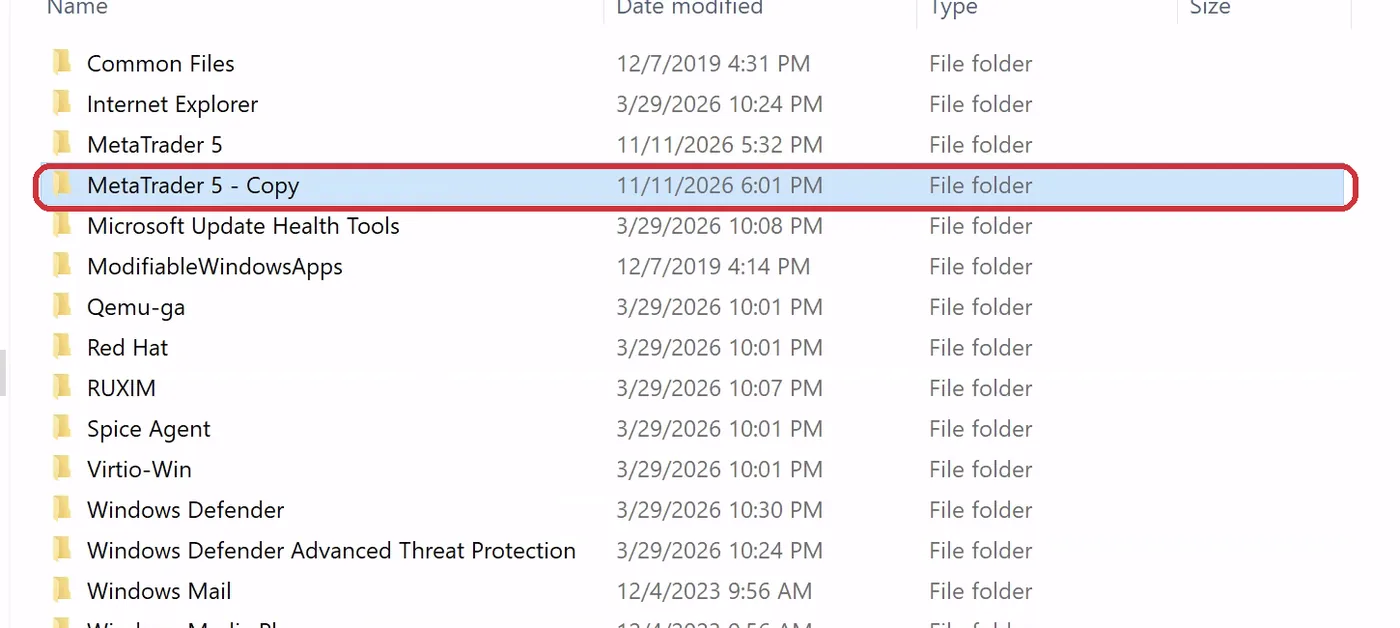
- Open the new folder and double-click terminal64. A second MT5 window opens.
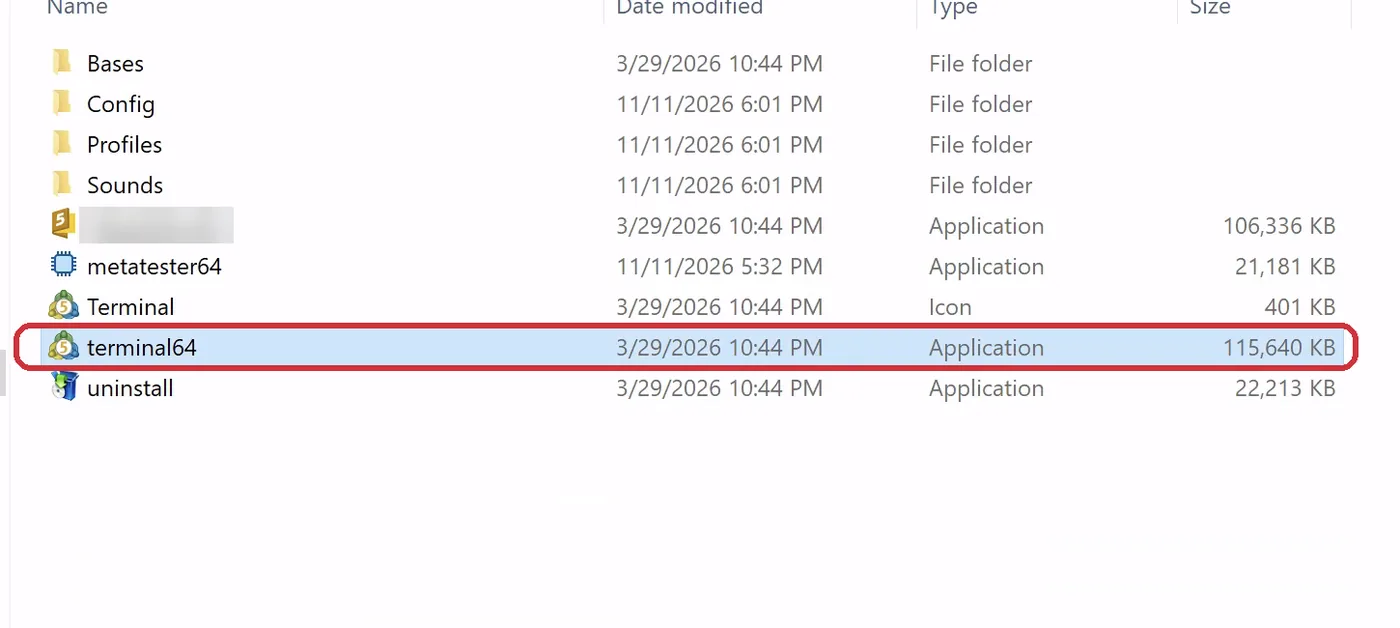
- In the new MT5 window, log in to the new account and add the bot exactly as before, following Install a Trading Bot (EA). (The new MT5 needs
https://api.cloudpips.iounder Allow WebRequest and Algo Trading turned on again.)
With both open, the VPS taskbar shows two MetaTrader 5 icons, one for each copy of MT5, each logged in to its own account. If you see only one, that copy isn't open yet: double-click terminal64 in its folder again.
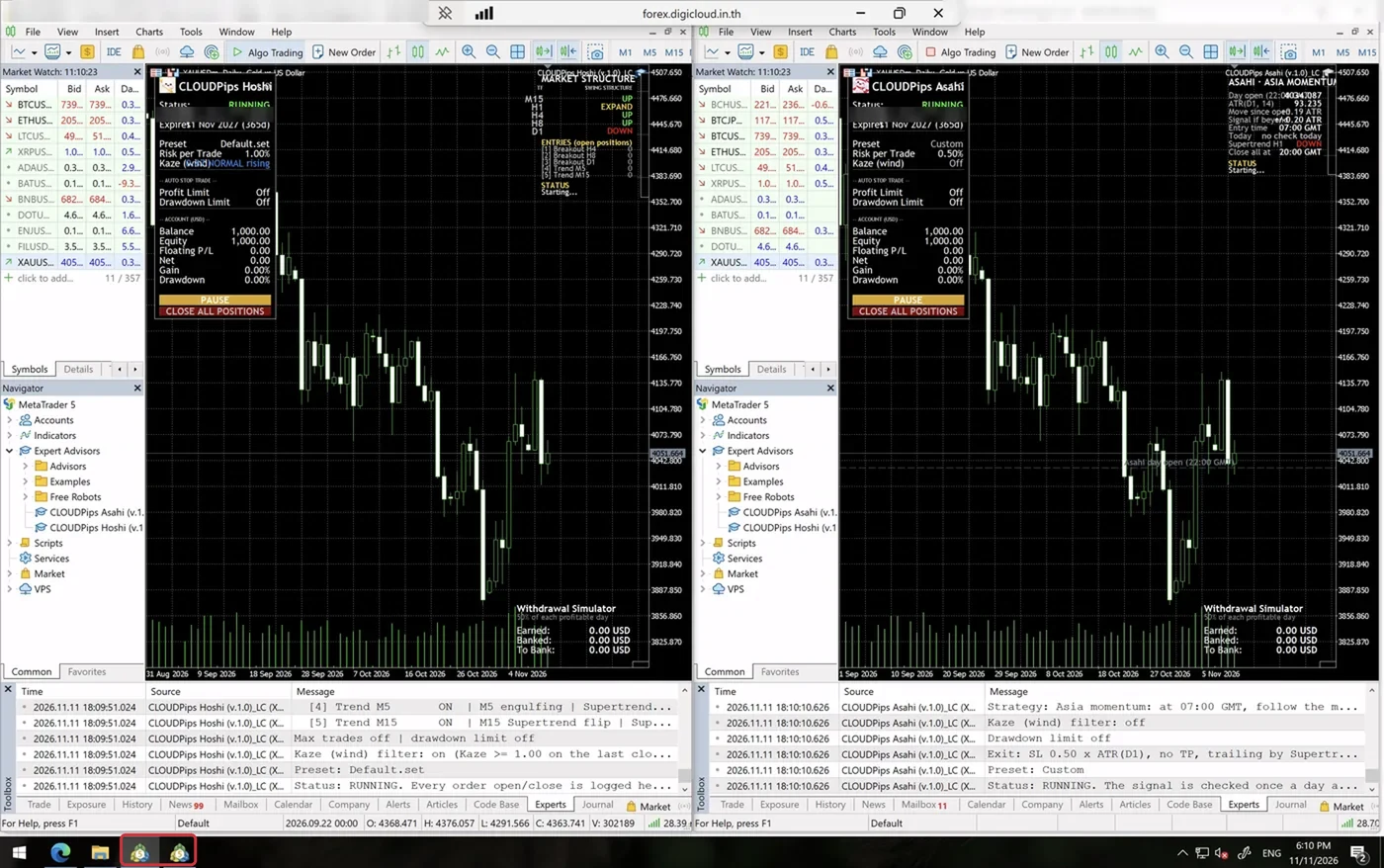
You can close the Remote Desktop window; both copies of MT5 keep running on the VPS. Don't close MT5 itself. If the VPS restarts, open both copies again and check the charts as in after a VPS restart.
VPS size: 2 GB RAM is enough for 1 account. For 2–3 accounts, use 2 vCPU and 4 GB RAM or more. See Minimum spec.
Save your charts as a profile, in case the VPS restarts
A VPS can restart on its own, for example after a Windows update or maintenance by the provider. When MT5 opens again, charts can be missing or in a different order, and when you put the bots back it's easy to attach the same bot to two charts of the same symbol. That bot then opens every trade twice, so a loss is doubled, while the other symbol has no bot at all.
A profile keeps every chart, bot and setting of that MT5 window, so you can put it all back in one step:
- Set up the charts and bots: each bot on 1 chart per symbol, for example Hoshi once on XAUUSD and once on BTCUSD.
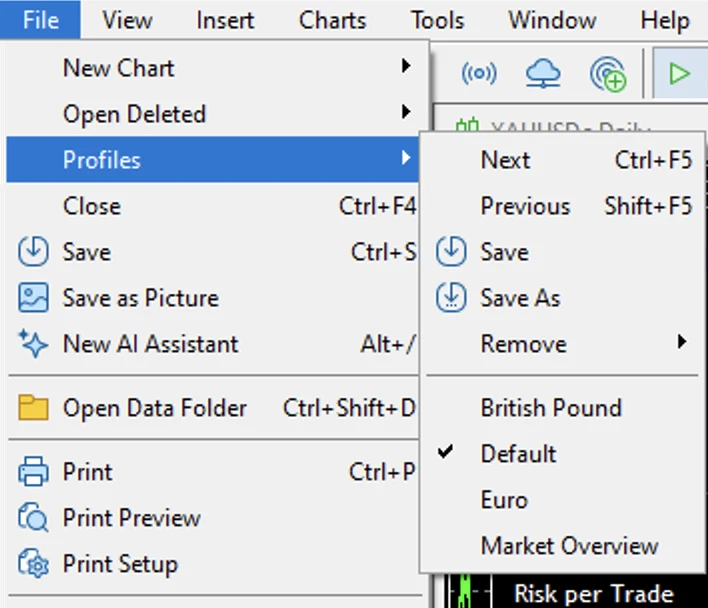
- Go to File → Profiles → Save As.
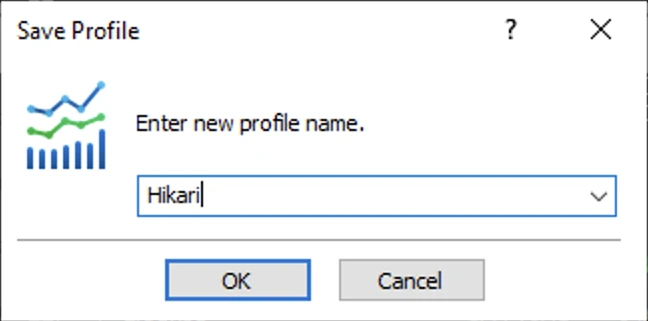
- Give it a name you'll recognise, such as the portfolio's name, and click OK. If you run several accounts, do this in every MT5 window.
Every time the VPS restarts:
- Open every copy of MT5 you were running.
- If the charts don't look as before, go to File → Profiles and pick the name you saved. MT5 opens the charts with their bots as they were.
- Check the top of every chart: each bot on 1 chart per symbol, none twice and none missing, and every bot's panel shows RUNNING.
- The Algo Trading button on the toolbar must be green.
After changing settings or updating a bot to a new version, use File → Profiles → Save again so the profile stays current.
Good to know
- Our bots are built for gold. On days gold swings hard, several bots are often hit at once. The more you run, the larger the combined loss can be. See Bot correlation
- The bots also work on BTCUSD with the same license, but drawdowns can go deeper than on gold. Start at
RiskPercent0.5%. See One bot on gold and BTCUSD - Start with one bot until you're comfortable, then add more
- Trading involves risk and you may lose money. Past results don't guarantee future results
Next steps
- What a portfolio gives you, and how to build the Hikari and Shiki portfolios: Managing your portfolio
- Help picking a set of bots: Compare strategies
Updated 24 November 2026
Still stuck? Email us at support@cloudpips.io or message LINE @cloudpipsfx and we'll help you sort it out.