
How to Load a Preset (.set) File
A preset (.set) file holds a full set of values for the EA's Inputs tab. Loading one sets everything in a single step, exactly as we tested it, instead of typing each value by hand.
Which preset to choose
CLOUDPips Sora comes with 2 presets:
| Default.set | Aggressive.set | |
|---|---|---|
| What it is | Sora's default settings — every filter on | Higher-timeframe ADX and adaptive SL/TP turned off |
| Stop loss / take profit | Sized from volatility, with partial close and trailing in strong trends (see How Sora sets SL/TP and exits) | Fixed: 1,000-point SL and 2,000-point TP |
| Profit in our 2024–2026 backtest | +127.59% | +516.79% |
| Trades | 332 | 1,103 |
| Longest losing streak | 9 trades | 25 trades |
| Largest balance drop | 18.74% | 13.85% |
| Largest equity drop (incl. open trades) | 31.01% | 28.80% |
Both backtests: XAUUSD M5, $1,000 starting balance, 1% RiskPercent. Default.set was also tested from 2003 to 2026. See the full results on the Backtest page. Past results don't guarantee future results.
Aggressive.set trades far more often and has much longer losing streaks. If you're not sure, start with Default.set.
1. Download the preset
On the CLOUDPips Sora page, under Preset Files, click the download button next to the preset you want. The file is named like CLOUDPips_Sora_Default.set.
2. Put it in MT5's Presets folder
This step is optional, but MT5 looks in this folder first, so you won't have to hunt for the file each time.
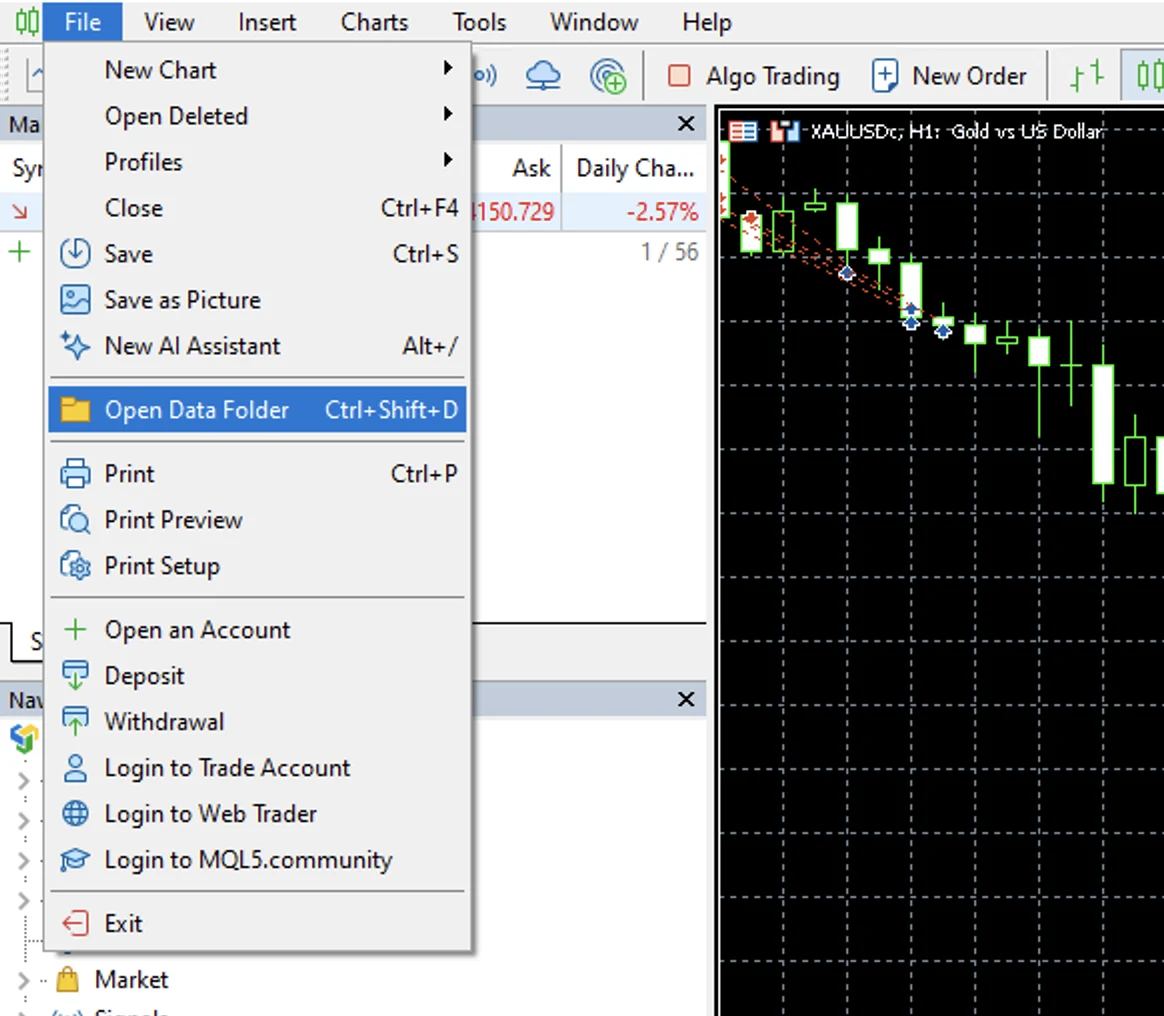
- In MT5, go to File → Open Data Folder.
- Open the MQL5 → Presets folder and copy the
.setfile into it.
3. Load it into Sora
- Open Sora's settings window:
- Not on a chart yet: drag Sora onto a chart set to D1 (see Install a Trading Bot (EA)).
- Already running: double-click the EA's name in the top-right corner of the chart, or press
F7.
- Go to the Inputs tab and click Load.
- Pick the
.setfile, then click Open. The values in the Inputs tab change to the preset's. - Check that it worked:
Enable_HTF_ADXreadstruewith Default.set andfalsewith Aggressive.set. - Set your own RiskPercent (and
Local_GMT_Offsetif you're not in Thailand), because a preset replaces every value, including those. Both presets use 1% risk and GMT+7. - Click OK.
Loading a preset in the Strategy Tester
In the Strategy Tester, go to the Inputs tab, right-click the list, choose Load, then pick the .set file. See How to Backtest in MetaTrader 5.
Good to know
- A preset only changes the Inputs tab. It doesn't change the chart's timeframe — keep the chart on D1 (see Set the chart timeframe).
- Loading a preset while Sora is running counts as changing settings. Any Trend trade that's open at the time is no longer partly closed or trailed. See Changing settings while running.
- On MQL5 Virtual Hosting, Migrate again after loading a preset. See Set Up a VPS.
- To keep settings you've adjusted, click Save in the Inputs tab and give the file a new name, so you don't overwrite our presets.
- Use the presets for the version you're running. They're made for Sora v1.1.
Still stuck? Email us at support@cloudpips.io and we'll help you sort it out.