

Set Up a VPS for 24/5 Uptime
An EA only works while MT5 is open and connected to the internet. If your computer shuts down, the power goes out or your connection drops, the EA stops and nobody is managing your open trades. (SL/TP already sent to the broker still apply.)
A VPS (Virtual Private Server) is a rented computer that stays on around the clock in a data center. Forex and gold markets are open 24 hours a day, 5 days a week, so a VPS keeps your EA running through every session without leaving your own computer on.
Three options
| Best for | Upside | Good to know | |
|---|---|---|---|
| General Windows VPS | Most people | Full control, and the on-chart panel shows just like on your computer | You install MT5 and the EA yourself (steps below) |
| Free VPS from your broker | Accounts that meet the broker's balance or volume requirements | No cost | Requirements vary by broker: check your broker's website |
| MQL5 Virtual Hosting | People who bought the bot on MQL5 | Rent it from inside MT5 | The on-chart panel doesn't show: follow results from MT5 on your computer or phone instead |
General Windows VPS
- Rent a Windows VPS from any provider that meets the minimum spec below. A data center in Thailand is fine: CLOUDPips bots place only a few trades a week, so they don't need the lowest possible ping. A data center close to your broker's server (often London or Amsterdam) is a bonus, not a must.
- Connect with Remote Desktop from your computer.
- Install MT5 and the EA on the VPS, following Install MetaTrader 5 and Install a Trading Bot (EA). On the cloudpips.io version, remember to add
https://api.cloudpips.iounder Allow WebRequest in MT5 on the VPS too, and paste your License Key. Moving the EA from your computer to the VPS? The key follows on its own — see Buying and Managing Your License. - When you leave Remote Desktop, just close the window (the ×). Don't Sign out or Shut down, or MT5 will close too.

Minimum spec
| For 1 MT5 terminal | For 2–3 MT5 terminals | |
|---|---|---|
| Windows | Windows Server 2016 or Windows 10 or newer, 64-bit | Same |
| CPU | 1 vCPU | 2 vCPU |
| RAM | 2 GB | 4 GB |
| Disk | 30 GB SSD | 40 GB SSD or more |
One MT5 terminal runs one trading account, and it can run several CLOUDPips bots on that account at once.
How to choose a provider:
- Stays up: look for an uptime of 99.9% or better, and support that answers quickly (in Thai, if that's easier for you)
- Windows included: check that the Windows license is in the price
- Try before committing: start on a monthly plan, run your bots for 1–2 weeks, then move to a longer plan if you're happy
Example: DigiCloud
Any provider that meets the spec above works. We use DigiCloud as an example because it's a Thai provider with MT5 pre-installed: its Forex 149 plan is enough for 1–2 accounts, and you can upgrade later.
Connecting to a DigiCloud VPS:
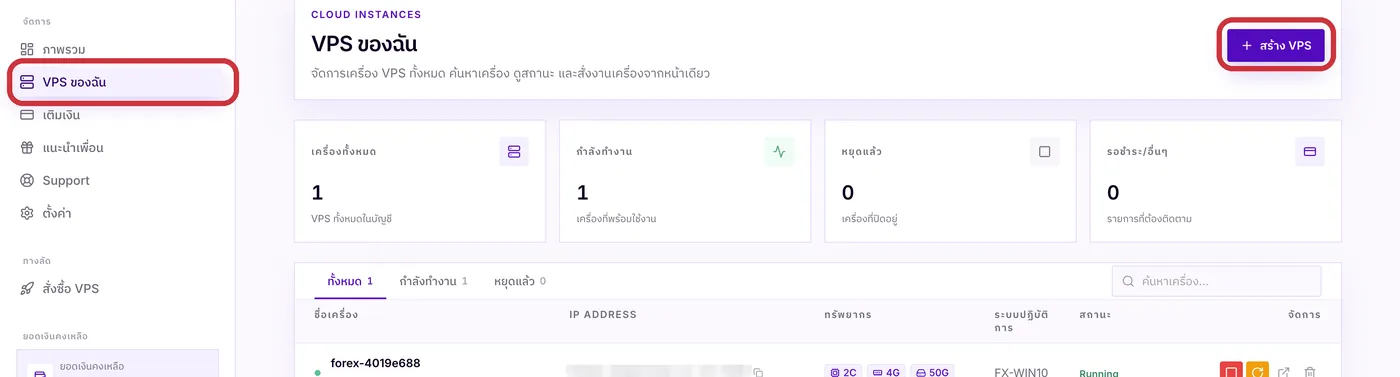
- Sign up, then go to VPS ของฉัน (My VPS) → สร้าง VPS (Create VPS).
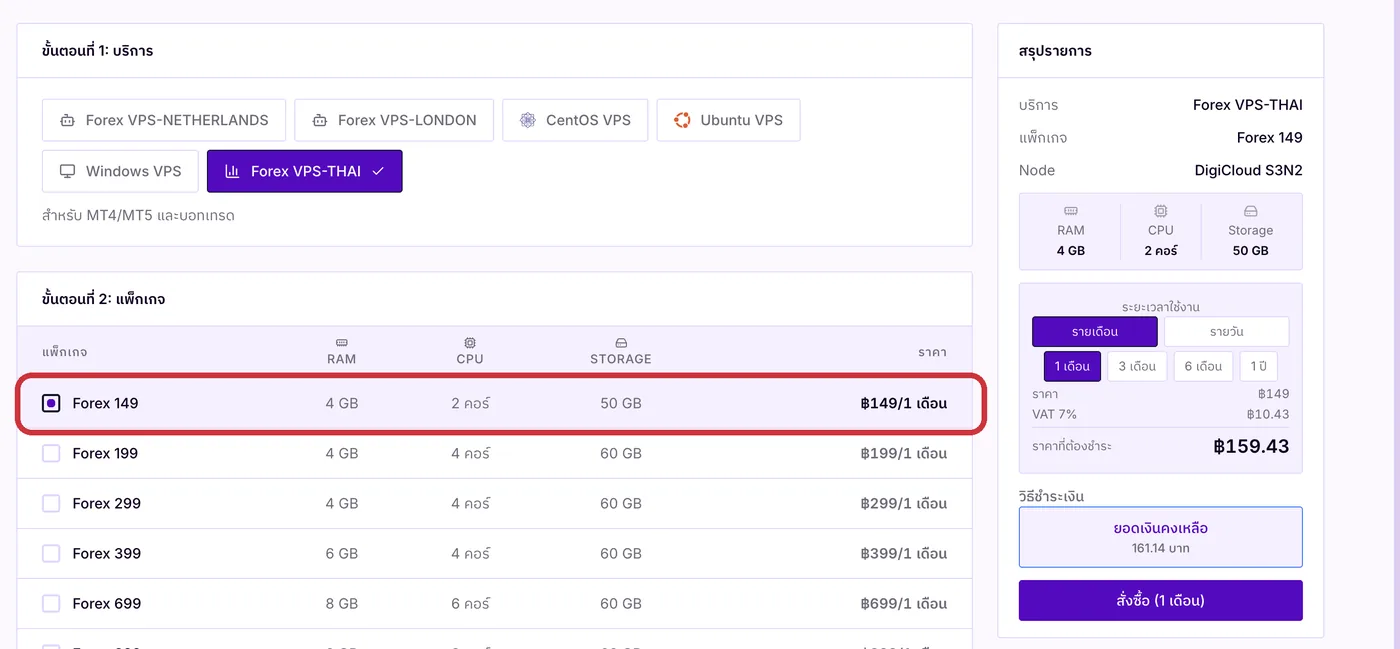
- Choose the Forex-VPS-Thai (Forex 149) plan or higher, pick a period and pay. If you plan to run the bots for a long time, renting several months at once saves renewing often.
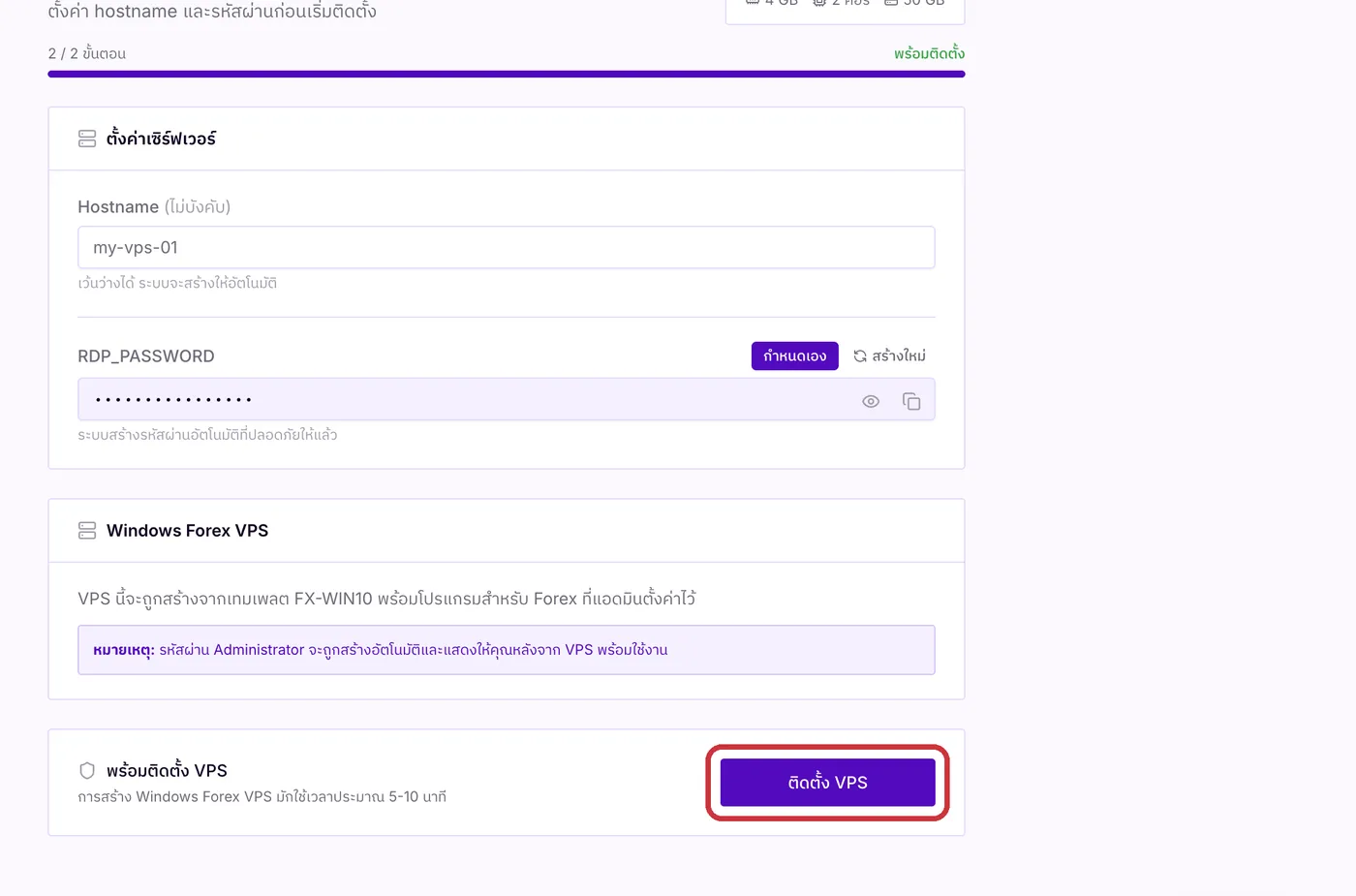
- After paying, you'll see the VPS setup page with details such as the Hostname and RDP Password. Click ติดตั้ง VPS (Install VPS) and wait a moment.
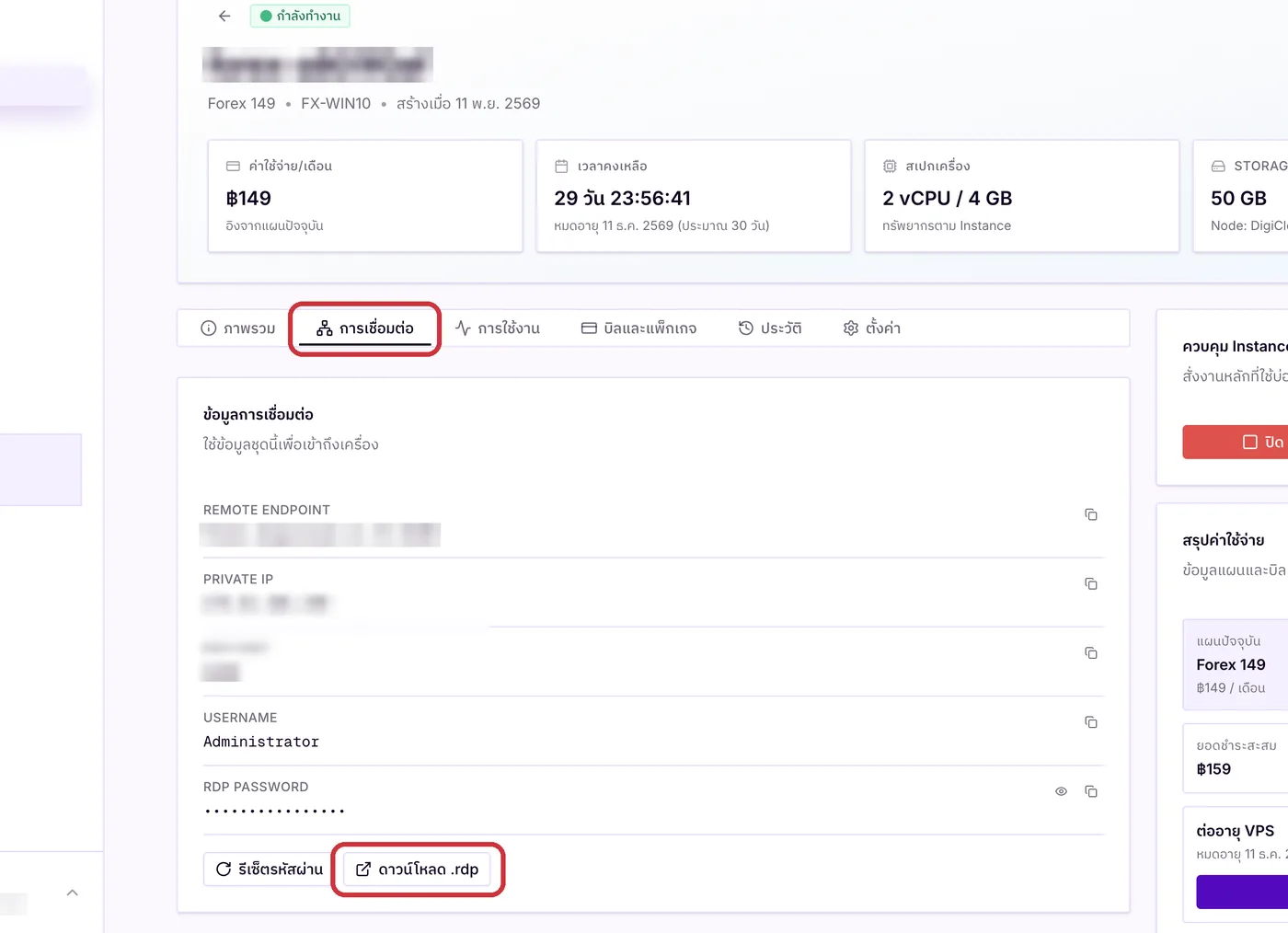
- Once the VPS is ready, go to VPS ของฉัน (My VPS) → the การเชื่อมต่อ (Connection) tab → click ดาวน์โหลด .rdp (Download .rdp).
- Open the
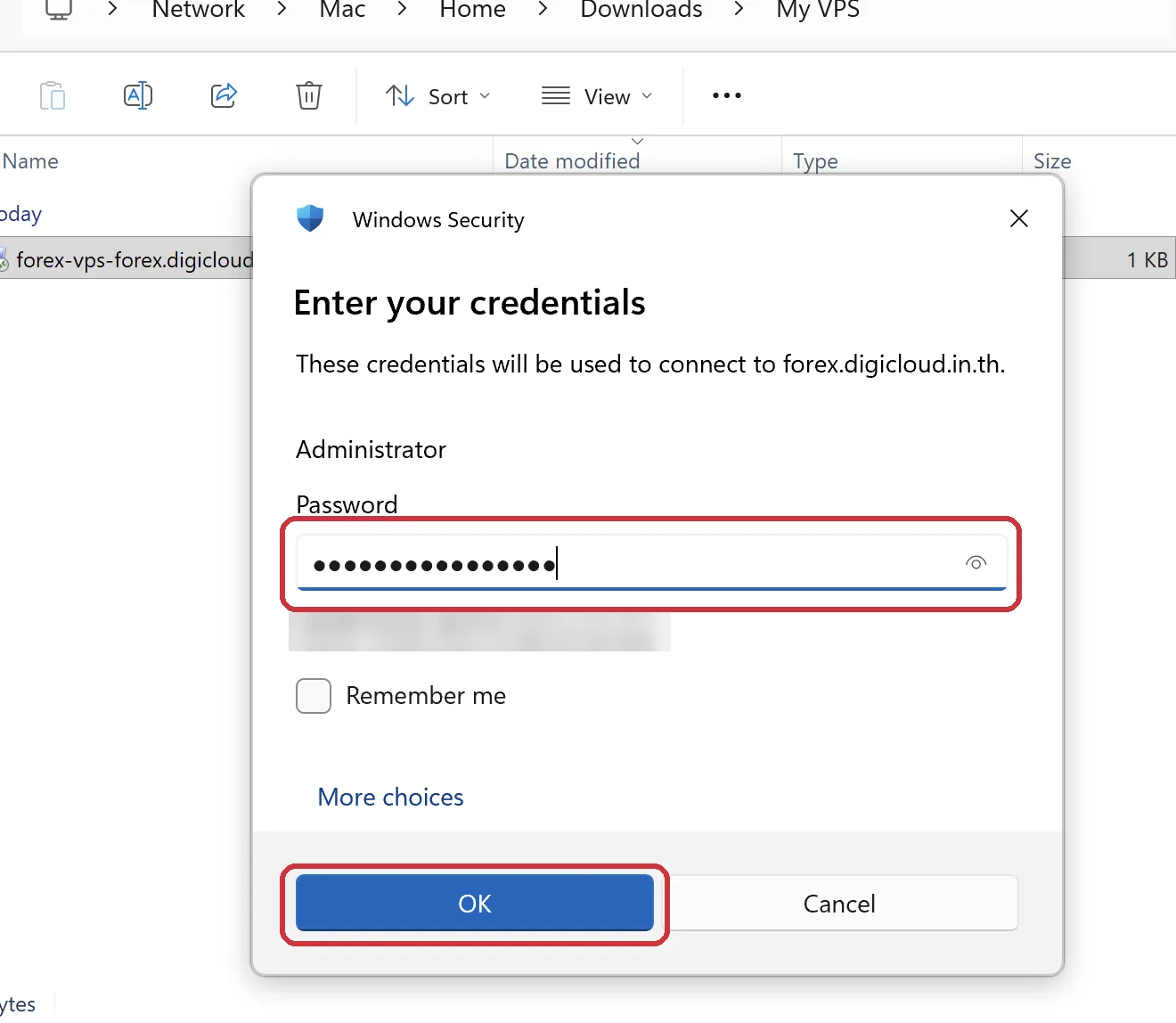
.rdpfile, enter the RDP Password shown on the website and click OK. It takes you straight to your VPS screen.
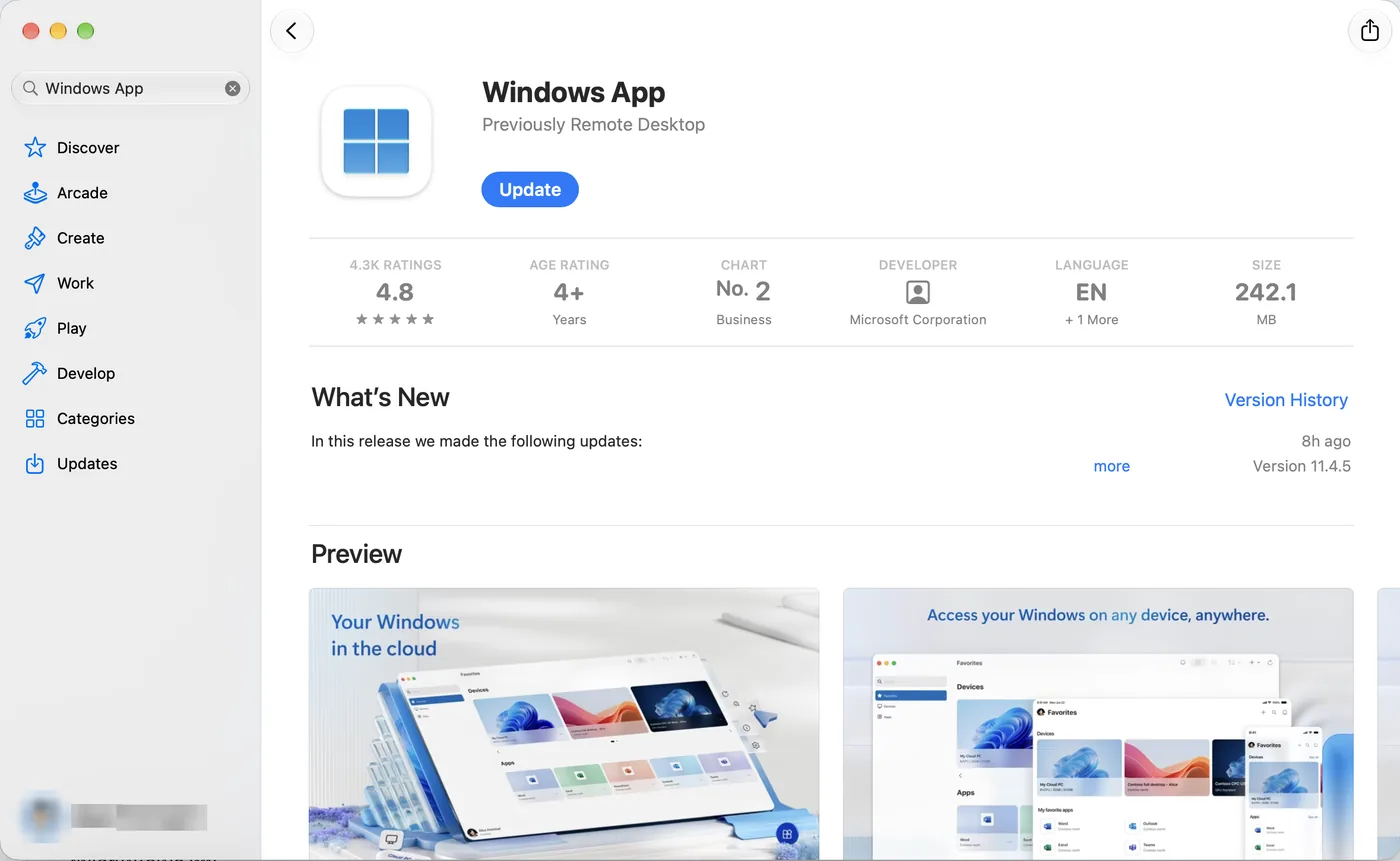
On a Mac: install Windows App (formerly Microsoft Remote Desktop) from the App Store first, then open the same .rdp file.
- DigiCloud's VPS comes with MetaTrader 5 already installed: double-click it and log in to your trading account (if it isn't there, download it free from https://www.metatrader5.com). Then install the EA as in Install a Trading Bot (EA).
MQL5 Virtual Hosting (if you bought on MQL5)
- Attach the EA to a chart and finish setting it up in MT5 on your computer first (see Install a Trading Bot (EA)).
- In the Navigator window, right-click your trading account number → Register a Virtual Server.
- Pick the server MT5 recommends (closest to your broker's server, with the lowest ping), then choose a plan and pay.
- Choose Migrate with Experts, indicators, charts to move your charts and EA to the VPS.
- Check the VPS Journal tab to confirm the migration succeeded.
Important: once you're on the VPS, any change to the EA's settings on your computer needs another Migrate — changes don't sync to the VPS on their own. Also turn off Algo Trading in MT5 on your computer, so the EA doesn't run in two places at once.
Check that the VPS is working
- Open the MT5 app on your phone, log in to the same account, and check that new trades come in as usual.
- The ping in the bottom-right corner of MT5 on the VPS should be steady. Lower is better, but CLOUDPips bots don't need a very low ping.
- cloudpips.io version: My licenses shows Running and a recent last-seen time. See Check the bot is still running
- Check the VPS once a week, especially after Windows updates, which may restart it. If MT5 is closed, open it again.
- After a VPS restart, always check the charts. Each bot belongs on 1 chart per symbol; attached twice, it opens every trade twice. Save your charts as a profile and you can put them back in one step. See Save your charts as a profile.
Next step
- Install a Trading Bot (EA) on MetaTrader 5
- Setup guides: Hoshi · Kumo · Sora
- VPS and other costs: Know the costs first
Updated 11 November 2026
Still stuck? Email us at support@cloudpips.io or message LINE @cloudpipsfx and we'll help you sort it out.