

How to pay, and auto-renew
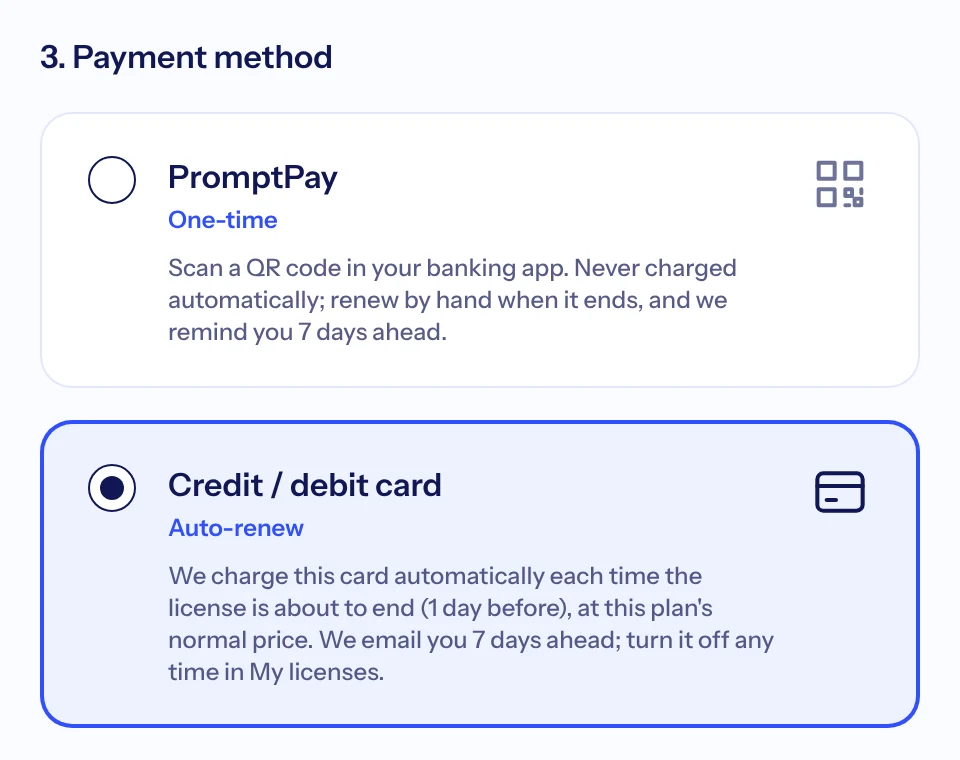
A license on cloudpips.io can be paid in 2 ways, chosen on the buy page: PromptPay, paid once, or credit / debit card, renewed automatically.
Both are paid through Stripe right on our page; you never leave the site. We never see or store your card details.
Which one to pick
| PromptPay | Credit / debit card | |
|---|---|---|
| How you pay | Scan a QR code in your banking app | Enter the card once |
| When it ends | Renew by hand; we email you 7 days and 1 day before | Renewed for you 1 day before it ends |
| Charged automatically? | Never | Yes, the same card, at the plan's normal price |
| Can I turn it off? | Nothing to turn off | Any time, in My licenses |
If you never want an automatic charge, pick PromptPay. If you want the bot to keep running without renewing by hand, pick card.
Buying, step by step
On the bot's strategy page, press Buy (the button shows the bot's name and starting price)
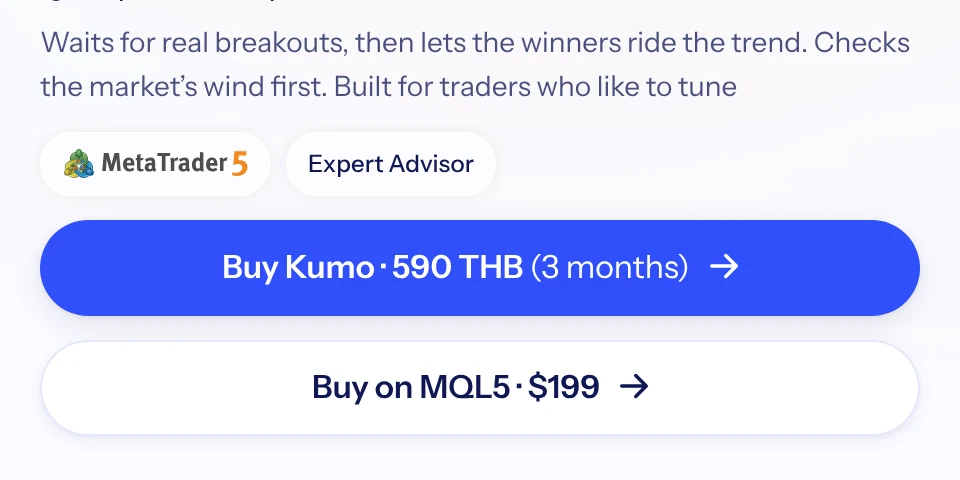
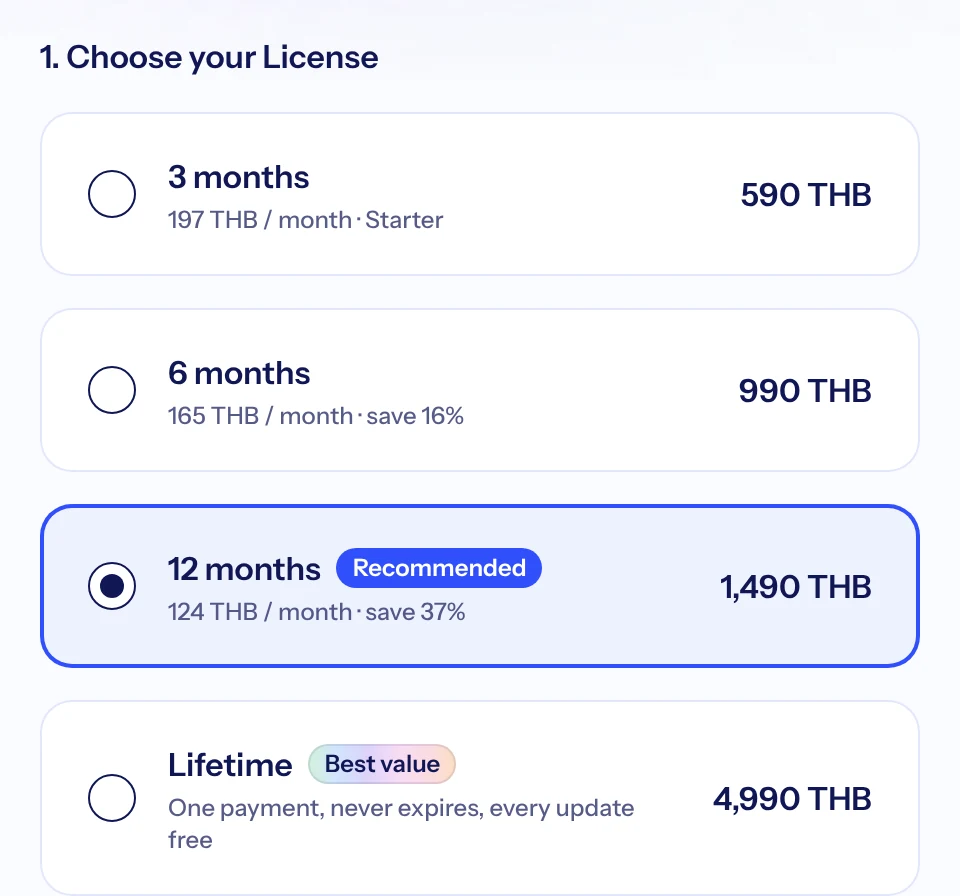
Choose your License: 3, 6 or 12 months, or lifetime
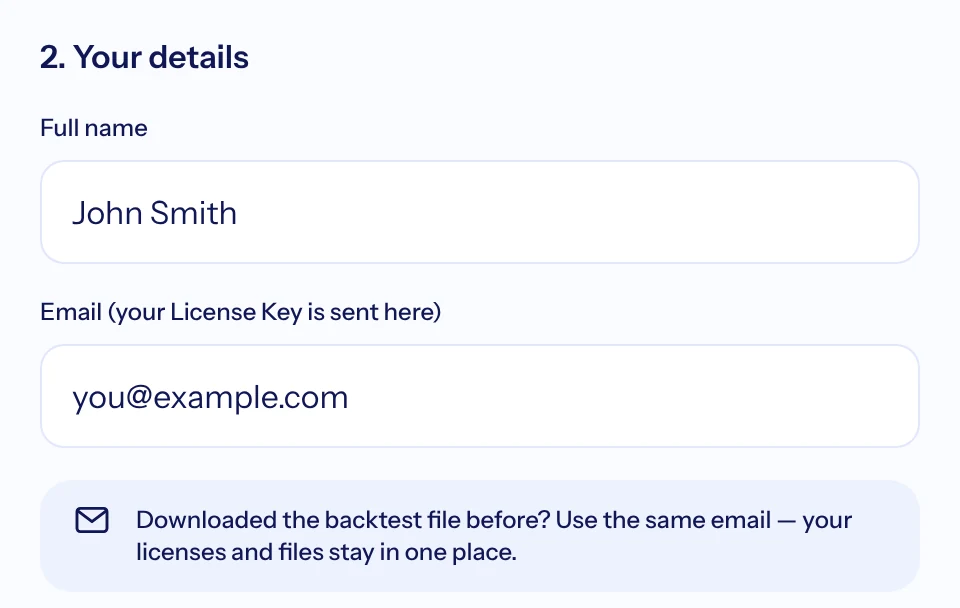
Enter your name and email. The License Key is sent to this email. If you already got the backtest file, use the same email so everything stays in one place.
Choose a payment method: PromptPay or credit / debit card (auto-renew)
Check the order summary: License, valid until and payment method. Have a discount code? Enter it here and press Apply.
Tick to accept the Terms, then press Continue to payment
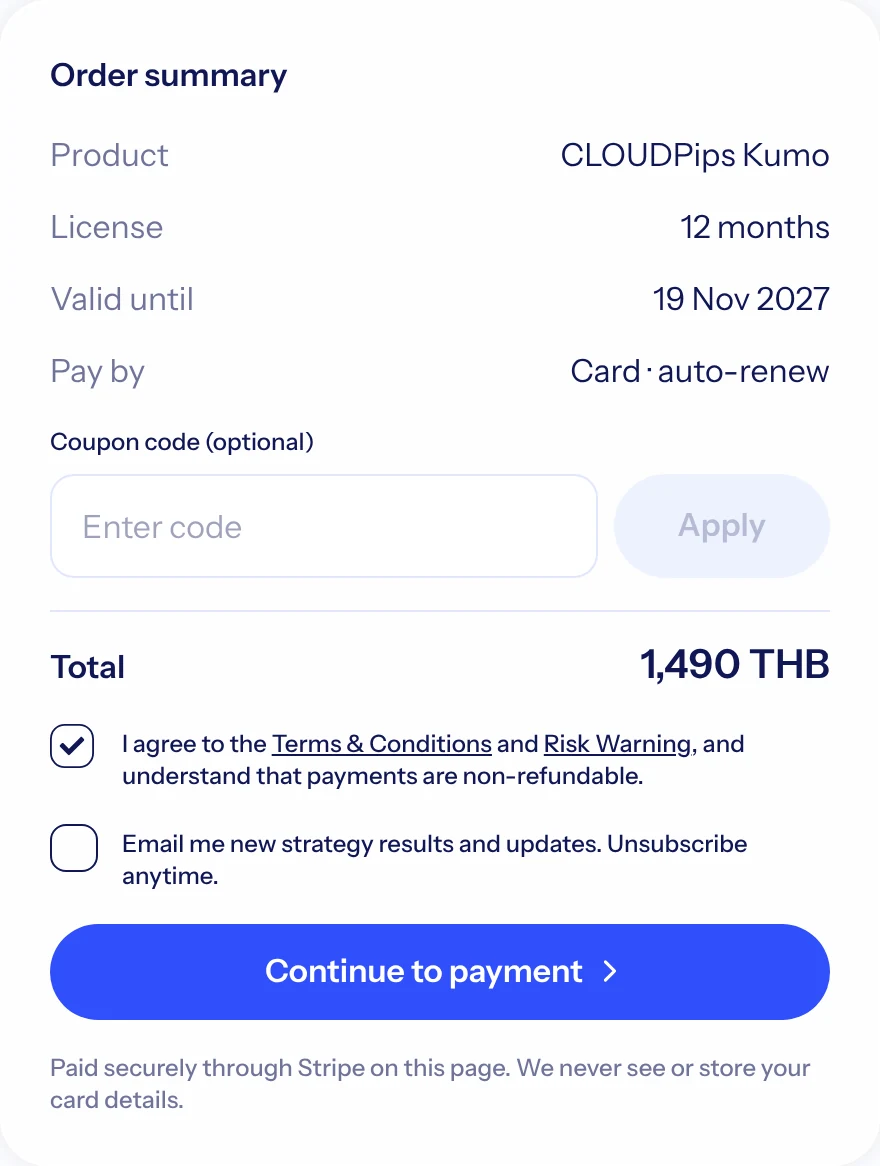
The payment form opens on the same page. Pay with the method you chose (PromptPay or card) before the countdown ends.
Once paid, your License Key shows on screen and arrives by email with the receipt right away. Press Copy to paste it into the bot.
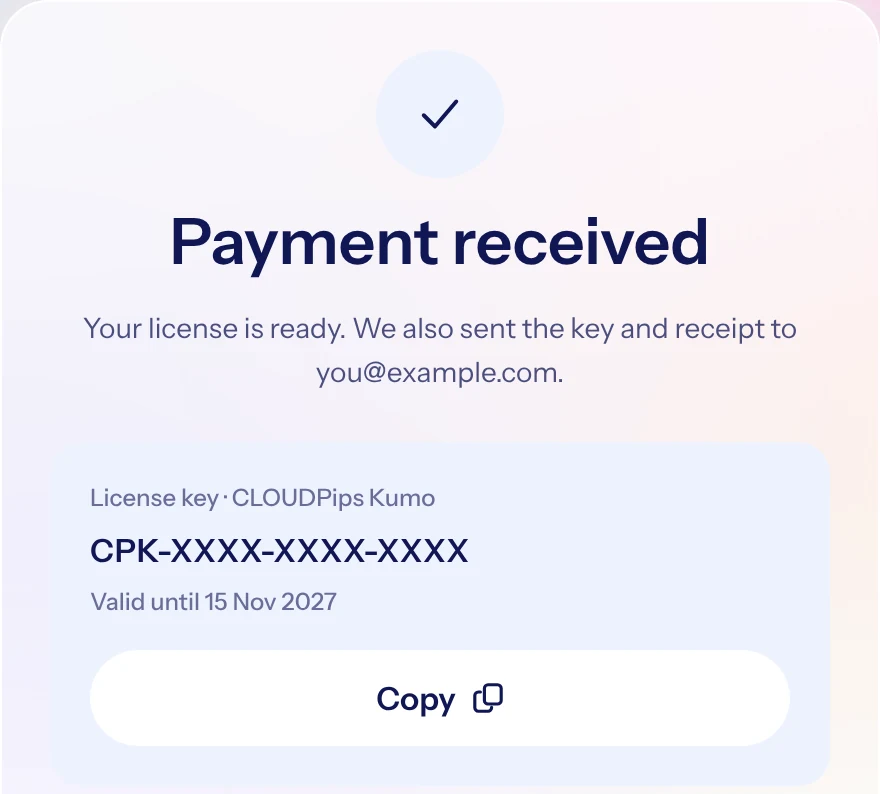
Next: install the bot and enter the key.
Paying with PromptPay
- Press Pay and a QR code appears
- Open your banking app, scan it and confirm the amount
- Wait for the page to show the payment went through; keep it open
The QR code only lasts a short time. If it runs out before you pay, press Start again for a new one. If you already paid but the page says time is up, don't pay again: contact us with the slip.
PromptPay is never charged automatically. We email you 7 days and 1 day before the license ends; renew by hand in My licenses.
Paying by credit / debit card
- Enter the card number, expiry date and CVC
- Press Pay; your bank may ask for an OTP
- Wait for the page to show the payment went through
With card, the card is saved with Stripe for auto-renew.
Auto-renew
Only for licenses paid by card.
- 7 days before the end: we email you the charge date and amount
- 1 day before the end: we charge the same card the plan's normal price (code discounts don't carry over) and renew on the same key, so the bot keeps running
- A receipt is emailed every time
Check it in My licenses: the license card shows auto-renew is on, the card used and the charge date.
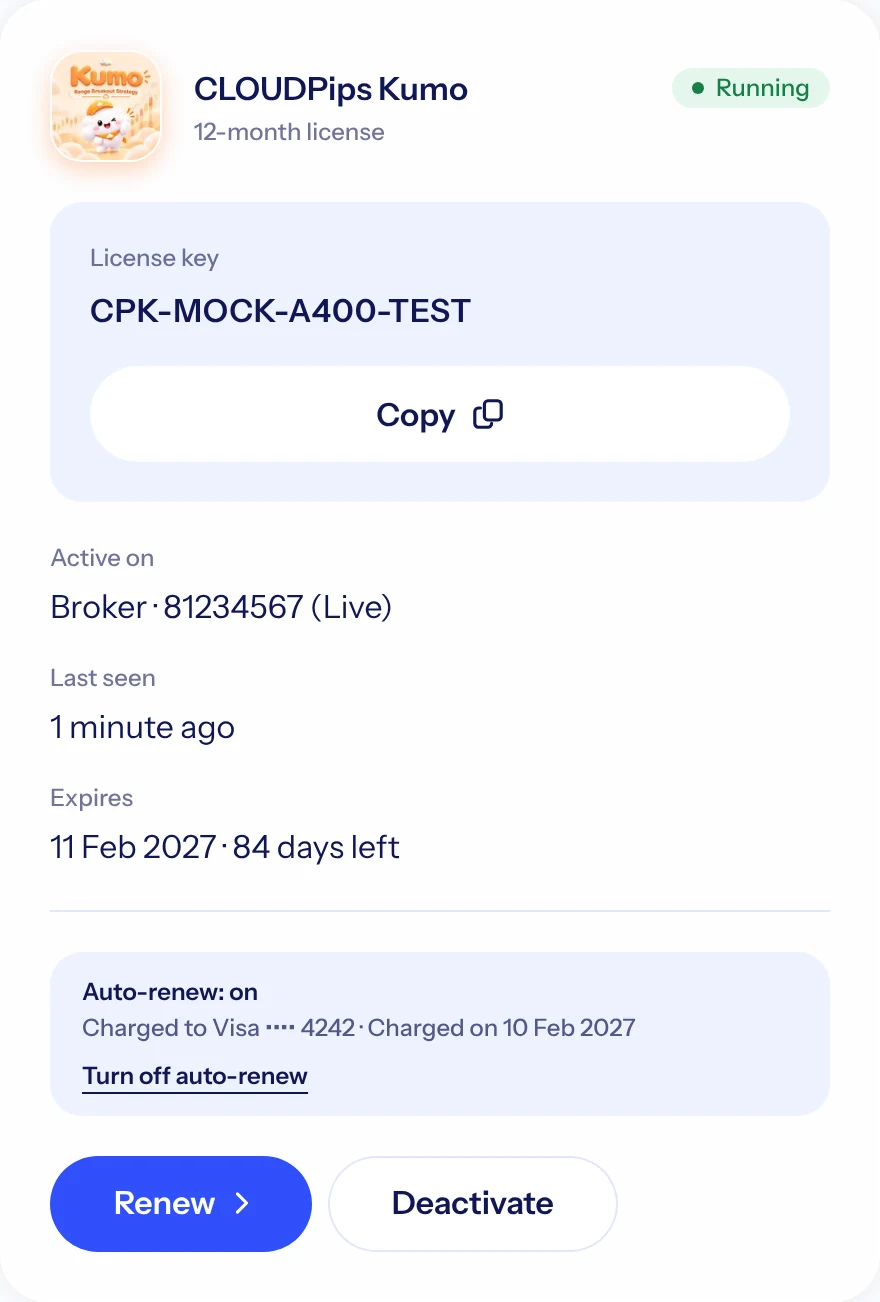
Turning auto-renew off
Press Turn off auto-renew on that license's card, any time before the charge date. The license keeps working until its current end date; after that, renew by hand with PromptPay or card. While the card is still saved, you can turn it back on.
If the charge fails
For example the card has expired, there isn't enough credit, or the bank wants you to confirm. Nothing is charged: we turn auto-renew off and email you a button to renew by hand. The license keeps working until its current end date.
Common questions
Paid but no email? Check spam or promotions, or sign in to My licenses with the email you bought with. The key is there.
Can I change the card used for auto-renew? Turn auto-renew off, then pay with the new card when you next renew.
Can I get a refund? Payments are final, including auto-renew charges. If you don't want to renew, turn it off before the charge date (refund policy).
Does this apply to the MQL5 Market? No. Payment and renewal there follow MQL5's own system (buying here vs on MQL5).
Stuck anywhere? Contact us.
Updated 15 November 2026
Still stuck? Email us at support@cloudpips.io or message LINE @cloudpipsfx and we'll help you sort it out.